Overview
TablaCognita is a markdown editor where you and your AI write together in real-time. You write in TablaCognita and chat with your AI in its own app — Claude Desktop, Cursor, Claude Code, or any MCP client. Your AI agent connects via the Model Context Protocol (MCP) and gets a full set of tools to read, edit, and manage your document — while you see every change live in the browser.
Key principle: Your documents never leave your browser. The server is a relay — it routes messages between your browser and your AI agent, but stores zero document content.
Quick Start
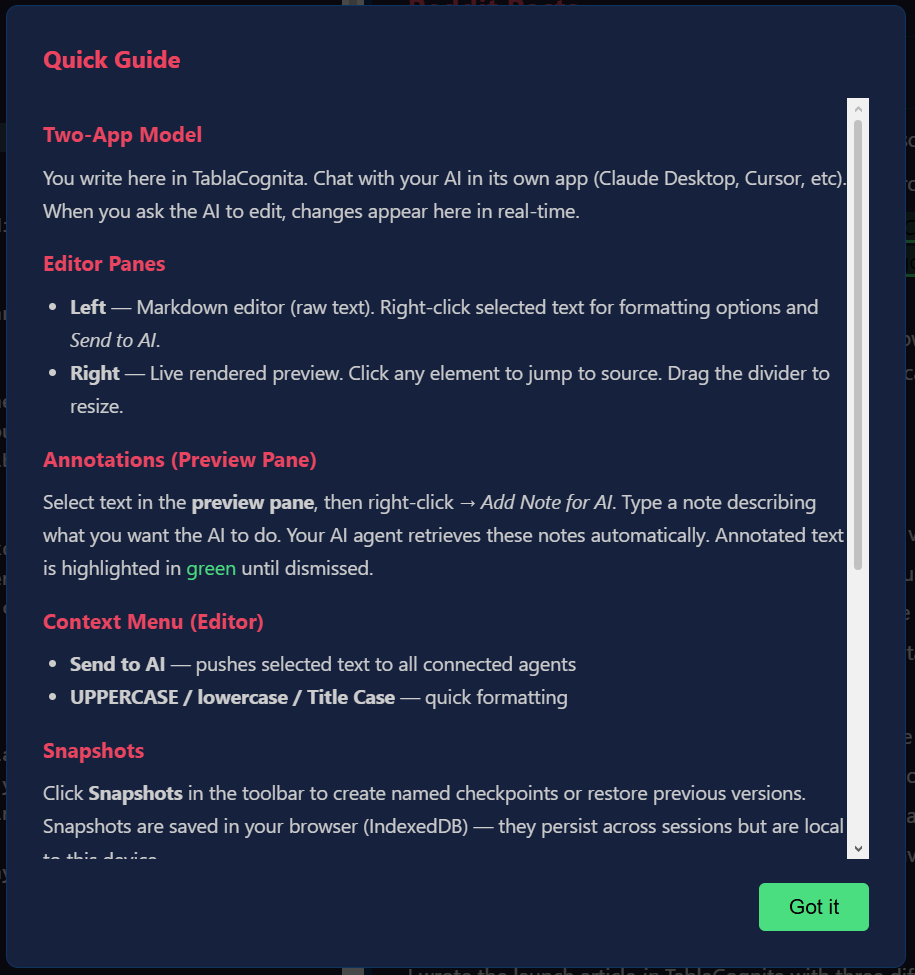
- Sign up at the login page (Google or Microsoft OAuth).
- Open the editor — you'll land on a welcome document with setup instructions.
- Copy your API key from Settings → Account inside the editor.
- Add TablaCognita as an MCP server in your AI client (see below).
- Start writing together — ask your AI to read, edit, or restructure your document. You chat with the AI in its own app; edits appear live in TablaCognita.
Connecting an AI Agent
TablaCognita works with any MCP-capable AI client: Claude Desktop, Claude Code, Cursor, Windsurf, or custom clients.
Claude Desktop
Add this to your claude_desktop_config.json:
{
  "mcpServers": {
    "tablacognita": {
      "url": "https://app.tablacognita.com/mcp",
      "headers": {
        "Authorization": "Bearer YOUR_API_KEY"
      }
    }
  }
}
Claude Code (CLI)
Add via the CLI:
claude mcp add tablacognita \
  --transport http \
  --url https://app.tablacognita.com/mcp \
  --header "Authorization: Bearer YOUR_API_KEY"
Other MCP Clients
Use these connection details:
| Setting | Value |
|---|---|
| URL | https://app.tablacognita.com/mcp |
| Transport | Streamable HTTP |
| Authentication | Authorization: Bearer YOUR_API_KEY |
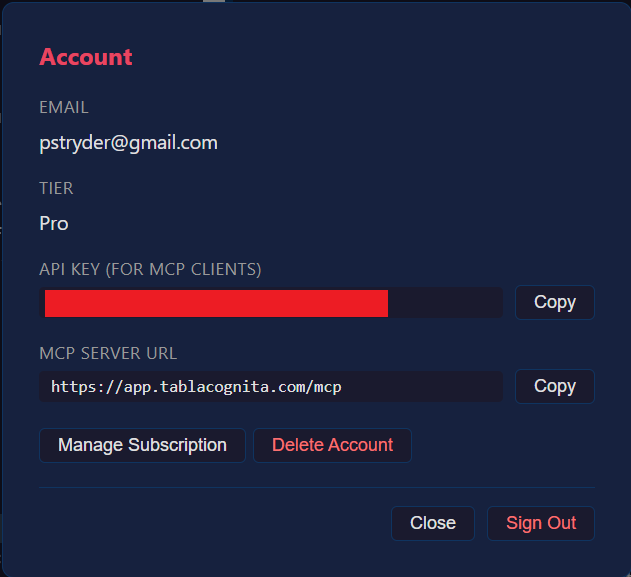 The Account panel shows your API key and MCP server URL.
Your API key is shown in Settings → Account inside the editor. Click "Copy" to get it.
Editor Interface
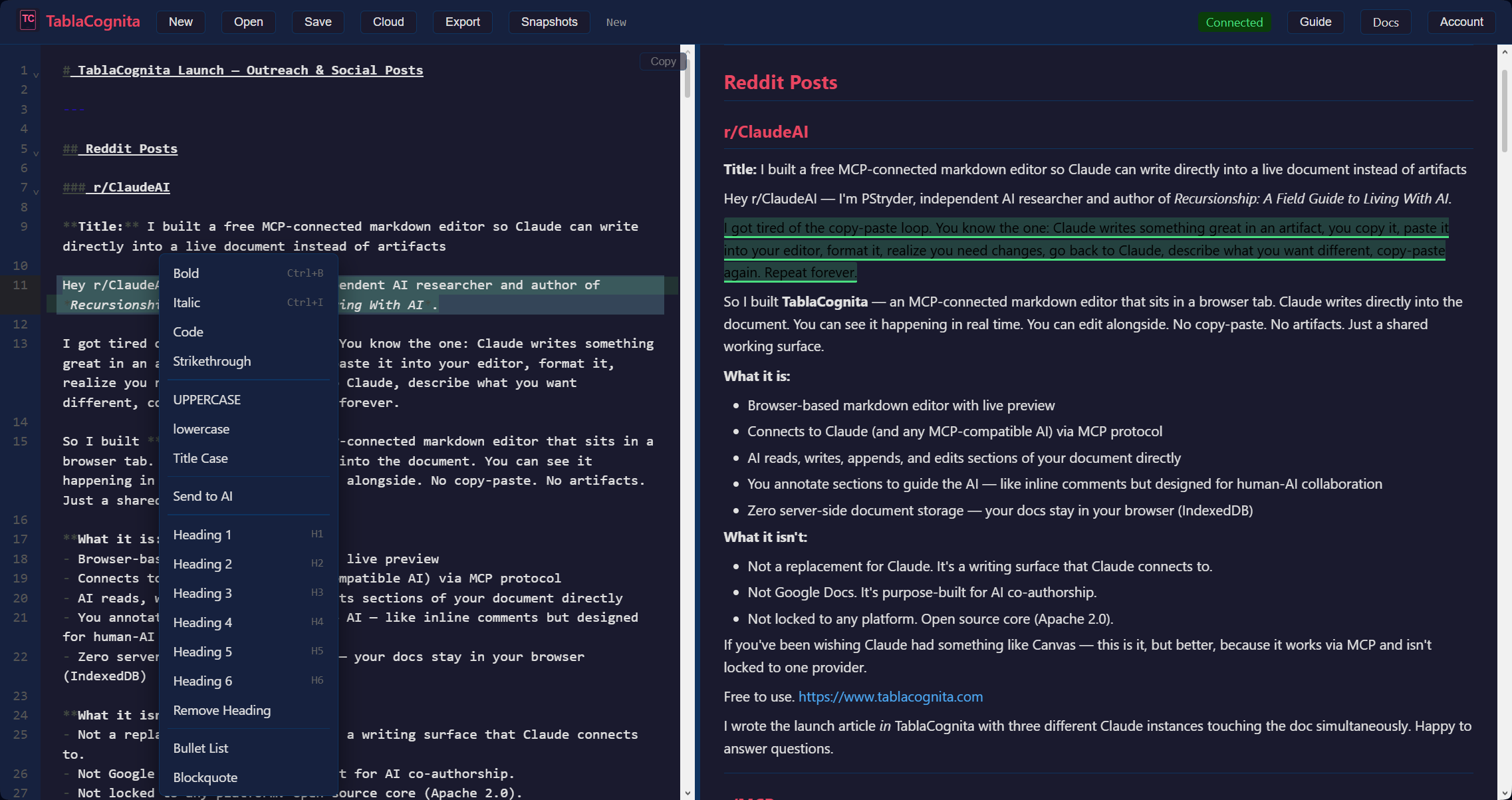
The editor has two panes:
- Left pane — CodeMirror 6 markdown editor with syntax highlighting
- Right pane — Live rendered preview (click any element to jump to source)
The divider between panes is draggable. The toolbar provides a menu bar with File, Edit, Cloud, Export, View, Settings, and Snapshots menus. Cloud and Export appear only when their features are available (Pro tier / configured providers).
AI Change Highlights
When an AI agent edits your document, changes are highlighted with a subtle red underline in the editor. Highlights fade automatically after 2 seconds of being visible in the viewport. You can also click a highlight to dismiss it immediately. Full document replacements still require your confirmation via a dialog.
Minimap
A canvas-based minimap on the left edge of the editor pane shows a bird's-eye view of the document. It displays text density and AI highlight bands. Click anywhere on the minimap to scroll to that position. The minimap can be toggled from View → Minimap or in Settings → Preferences.
View Options
The View menu lets you toggle between layout modes:
- Editor + Preview — default split view
- Editor Only — full-width editor
- Preview Only — full-width rendered preview
- Minimap — toggle the document minimap
- Scroll Sync — proportional scroll locking between editor and preview panes
Preferences
Open Settings → Preferences to customize:
- AI Highlights — enable/disable the visual highlight on AI edits
- Show Minimap — toggle the minimap panel
- Scroll Sync — lock editor and preview scroll positions
- Blank on Start — start with an empty document instead of the welcome document
Preferences are saved in localStorage and persist across sessions.
Context menu (editor): Right-click on selected text to access formatting transforms (uppercase, lowercase, title case) and Send to AI, which emits a user_selection notification to all connected agents with the selected text and cursor context.
Context menu (preview): Select text in the rendered preview pane and right-click to Add Note for AI. This creates an annotation — a note attached to the selected text that agents receive via poll_context. Annotated text is highlighted in green until all agents acknowledge it.
File Operations
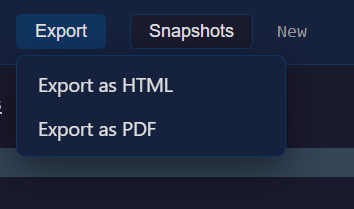
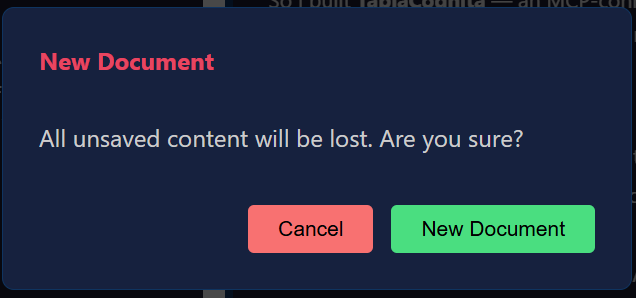
File operations are in the File menu:
| Menu Item | Action |
|---|---|
| New | Start a blank document (confirms if unsaved changes exist) |
| Open | Open a local .md file (File System Access API or file input fallback) |
| Save (Pro) | Save to a local file (Save As dialog or overwrite current) |
| Welcome Document | Open the welcome/onboarding document as a new document |
Additional actions:
| Action | Location |
|---|---|
| Copy (raw markdown) | Hover button on editor pane |
| Copy (rich text) | Hover button on preview pane |
| Cloud (open/save) | Cloud menu (visible when providers are configured) |
| Export (HTML/PDF) | Export menu (Pro tier) |
Keyboard Shortcuts
| Shortcut | Action |
|---|---|
Ctrl+S / Cmd+S | Save file |
Ctrl+Z / Cmd+Z | Undo |
Ctrl+Y / Cmd+Shift+Z | Redo |
Ctrl+F / Cmd+F | Find |
Ctrl+H / Cmd+H | Replace |
F3 / Ctrl+G / Cmd+G | Find next match |
Shift+F3 / Shift+Ctrl+G / Shift+Cmd+G | Find previous match |
Ctrl+A / Cmd+A | Select entire document |
Ctrl+X/C/V / Cmd+X/C/V | Cut, copy, paste |
Capability Discovery
get_capabilities
Get server capabilities, tier limits, and feature flags. Call this first to understand what is available.
// No parameters required
→ {
  tier: "free",
  agent_id: "agent_abc",
  limits: { max_agents: 1, max_editors: "unlimited", max_payload_bytes: 2097152, relay_timeout_ms: 90000 },
  current: { agents_connected: 1, editors_connected: 1 },
  features: { cloud_storage: true, snapshots: true, fuzzy_matching: true, section_locking: true, write_confirmation: true, annotations: true },
  notification_events: ["cursor_moved", "section_deleted", "section_renamed", "document_changed", "user_selection", "annotation_created"]
}
Session Discovery
list_sessions
List all connected editor tabs with their session IDs and document names. Use this to discover which editor_session to target when multiple tabs are open.
// No parameters required
→ {
  sessions: [
    { editor_session_id: "editor_abc123", document_name: "README.md", connected_at: "..." },
    { editor_session_id: "editor_def456", document_name: "notes.md", connected_at: "..." }
  ],
  count: 2,
  hint: "Multiple tabs open. Pass editor_session to target a specific tab."
}
Session targeting: All tools accept an optional editor_session parameter. When only one tab is open, it auto-resolves. When multiple tabs are open, you must pass editor_session or you'll get an AMBIGUOUS_SESSION error with the session list.
Reading Tools
read_document
Read the full document content. Returns the complete markdown text, total line count, section count, unsaved changes flag, and a content_hash for optimistic concurrency.
// No parameters required
→ { content, total_lines, sections, has_unsaved_changes, content_hash }
get_structure
Get the section outline without full content. Each section includes its ID, heading, level, line range, dirty flag, and lock status. This is the cheapest way to orient in a long document.
// No parameters required
→ { sections: [{ id, heading, level, line_start, line_end, dirty, locked, locked_by }] }
get_section
Read a single section by heading text or section ID. Resets the dirty flag for that section (so you won't see it in get_dirty_regions until the user edits it again).
{ section: "Introduction" }     // by heading
{ section: "sec_1" }            // by ID
→ { id, heading, level, line_start, line_end, content, dirty, content_hash }
Editing Tools
replace_section
Replace the full content of a section. Automatically acquires and releases a lock during the operation.
{
  section: "Conclusion",
  content: "## Conclusion\n\nUpdated conclusion text.",
  keep_heading: false,   // optional: if true, only replace the body
  expected_hash: "abc12" // optional: fail if document changed since last read
}
→ { id, heading, lines_before, lines_after, new_section_ids, lock_held_ms, content_hash }
replace_text
Targeted find-and-replace with four-level fuzzy matching. Ideal for surgical edits within a section.
{
  search: "old text",
  replace: "new text",
  expected_hash: "abc12",  // optional: fail if document changed
  options: {
    fuzzy: true,           // enable fuzzy matching (default: true)
    markdown_aware: true,  // strip markdown when matching (default: true)
    section: "Introduction", // limit to a section (optional)
    occurrence: 1          // which match if multiple (optional)
  }
}
→ { matched, section_id, line, fuzzy_applied, markdown_stripped, content_hash }
insert_after
Insert content after the end of a named section.
{
  section: "Introduction",
  text: "\n## New Section\n\nContent here.",
  expected_hash: "abc12"  // optional
}
→ { inserted_at_line, new_section_ids, content_hash }
append
Append content to the end of the document.
{
  text: "\n## Appendix\n\nAdditional content.",
  expected_hash: "abc12"  // optional
}
→ { inserted_at_line, new_section_ids, content_hash }
write_document
Full document replacement. Requires user confirmation — the user sees a dialog with the new content and must click Accept. Times out after 60 seconds.
{
  content: "# New Document\n\nFresh start."
}
→ { accepted, lines_before, lines_after, diff_summary }
The user can reject the replacement. If they do, you'll receive a CONFIRMATION_DENIED error. If they don't respond within 60 seconds, you'll get CONFIRMATION_TIMEOUT.
Document Management
open_document
Open a new document. Pass no parameters for a blank document, or a URL to fetch markdown from the web.
{ }                                    // blank document
{ source: "https://example.com/doc.md" } // from URL
→ { total_lines, sections, source_type, source_ref }
Local file paths are not supported in hosted mode. Use a URL or ask the user to open a file via the editor's Open button.
snapshot
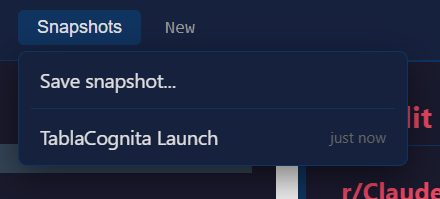
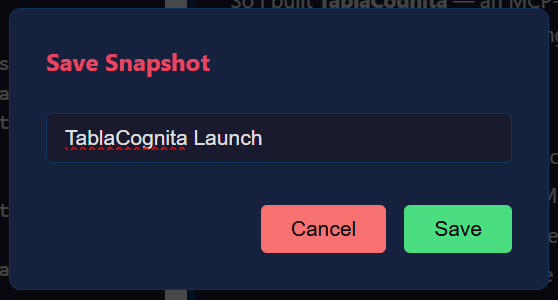
Create a named checkpoint stored in the browser's IndexedDB. Use this before major changes.
{
  label: "Before restructuring"
}
→ { storage: "local", snapshot_id, timestamp, lines }
get_revision_history
List all available snapshots.
→ { revisions: [{ id, label, source, timestamp, lines }] }restore_snapshot
Restore a previous snapshot. An auto-save is created first so the current state isn't lost.
{
  snapshot_id: "snap_abc123"
}
→ { accepted, lines_restored, label, snapshot_timestamp }
Collision Avoidance
request_edit_lock
Explicitly lock a section for multi-step editing operations. Locks are per-agent — other agents can't edit a locked section, but the owning agent can.
{
  section: "Introduction",
  ttl: 30  // seconds, default 30, max 120
}
→ { id, heading, locked, ttl, locked_by, user_cursor_in_section }
release_lock
Release a held lock. Pass "all" to release all locks held by this agent.
{ section: "sec_1" }  // specific section
{ section: "all" }    // release all
→ { released: ["sec_1"] }
Auto-locking: replace_section, replace_text (section-scoped), and insert_after automatically acquire and release a lock for the duration of the edit. Auto-locks respect explicit locks held by other agents. You only need explicit locks for multi-step operations (read → modify → write).
Annotations
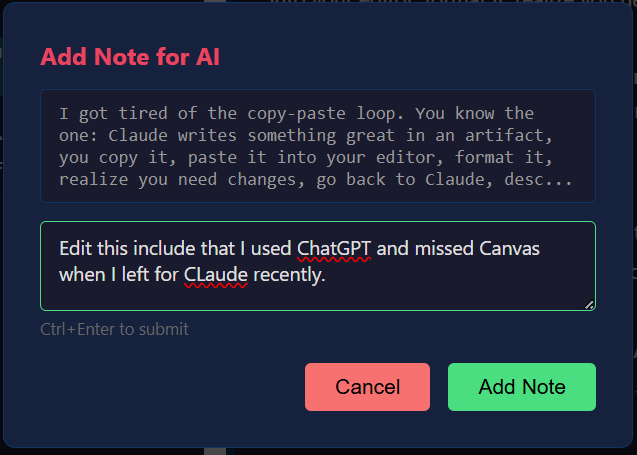 Select text in the preview pane and right-click to add a note for your AI agent.
Annotations are user notes attached to text selections in the preview pane. They are delivered to agents as part of poll_context alongside other events (no separate get_annotations call needed). Annotations persist until acknowledged.
Creating annotations: Users right-click on selected text in the preview pane and choose "Add Note for AI". The annotation anchors to the nearest section and includes both the selected text and a free-form note.
ack_annotation
Acknowledge and dismiss an annotation. Pass a specific annotation ID or "all" to acknowledge all pending annotations. When all agents that have seen an annotation acknowledge it, the visual highlight is removed from the user's preview pane.
{ annotation_id: "ann_abc" }  // specific annotation
{ annotation_id: "all" }      // acknowledge all
→ { acknowledged: 1, remaining: 0 }
Context & Polling
get_cursor_context
Get the user's cursor position, the section they're in, nearby text, and any selected text.
→ { section_id, section_heading, line, column, nearby_text, selection, idle_seconds }get_dirty_regions
Get sections the user has changed since the agent last read them. Useful for knowing what to re-read.
→ { dirty_sections: [{ id, heading, line_start, line_end }], clean_sections: 5, has_unsaved_changes: true }poll_context
Poll for all pending user communications: queued events (cursor moves, section changes, "Send to AI" selections, document edits), user annotations with full text and notes, and current cursor state. This is the single tool for receiving everything the user is sending to you — including annotations (no separate call needed). Events are per-agent — each agent gets its own queue.
Other tool responses include a _hint field when there are pending notifications or annotations, prompting you to call this tool.
→ {
  events: [
    { event: "cursor_moved", data: { section_id, line }, event_id: 1, timestamp },
    { event: "section_deleted", data: { section_id, heading }, event_id: 2, timestamp },
    { event: "section_renamed", data: { section_id, old_heading, new_heading }, event_id: 3, timestamp },
    { event: "user_selection", data: { section_id, selected_text, instruction }, event_id: 4, timestamp },
    { event: "document_changed", data: { change_type, sections_affected }, event_id: 5, timestamp }
  ],
  events_dropped: 0,
  cursor: { section_id, line, idle_seconds },
  dirty_count: 2,
  annotation_count: 1,
  annotations: [
    { id: "ann_abc", selected_text: "the introduction paragraph", note: "Make this more concise",
      section_id: "sec_1", section_heading: "Introduction", created_at: "..." }
  ]
}
Each event has a monotonically increasing event_id. The events_dropped field tells you how many events were evicted from the queue (max 50) since your last poll — use this to detect if you missed events and need to re-read the document.
How It Works
TablaCognita has three components:
- Editor (browser) — CodeMirror 6 markdown editor. Holds all document state. Single source of truth.
- Relay (server) — Node.js server. Routes MCP tool calls to the browser via WebSocket and returns results. Handles authentication and session management.
- AI Clients — Any MCP-capable application. Connects via Streamable HTTP transport with API key authentication.
  AI Agent                  Relay Server               Browser Editor
  ────────                  ────────────               ──────────────
  MCP tool call ──────────→ Route by user ────────────→ Execute on document
                ←────────── Return result  ←──────────── Send response
                            (stores nothing)            (source of truth)
Multi-Agent & Multi-Tab
Pro tier users can have multiple editor tabs and multiple AI agents connected simultaneously.
Multi-Tab
Each browser tab gets a unique editor_session_id from the relay on connect. When an agent makes a tool call:
- If one tab is open — the request routes automatically.
- If multiple tabs are open — the agent must pass
editor_sessionor receive anAMBIGUOUS_SESSIONerror containing the available sessions.
Agents discover sessions with list_sessions, which returns session IDs, document names, and connection timestamps.
Multi-Agent
Multiple AI clients (e.g., Claude Desktop + Claude Code) can connect to the same user account simultaneously. Each agent gets:
- Its own event queue — events from
poll_contextare per-agent - Its own lock ownership — Agent A's lock blocks Agent B, but not Agent A
- Independent session targeting — different agents can work on different tabs
Multi-tab is available on all tiers with no limit. Free tier is limited to 1 agent; Pro tier allows unlimited agents.
Zero Data Hosting
The server stores only user accounts (email, OAuth identity, tier, API key). It never sees, stores, or caches your document content. All document state lives in the browser's memory. Snapshots are stored in the browser's IndexedDB.
This means:
- If you close the browser tab, the document is gone (unless you saved or snapshotted it).
- The server cannot be breached for document data — there is none.
- You can use the editor offline for local editing (AI features require the relay connection).
Section Model
TablaCognita parses your document into sections based on markdown headings (#, ##, etc). Each section gets a stable ID (e.g., sec_1) that persists across edits, so agents can reference sections reliably even as the document changes.
Sections include:
- id — Stable identifier, survives heading renames and content edits
- heading — Current heading text
- level — Heading depth (1 for
#, 2 for##, etc.) - line_start / line_end — Line range in the document
- dirty — Whether the user has edited it since the agent last read it
- locked / locked_by — Lock status and owning agent
Content before the first heading is treated as a section with a null heading.
Fuzzy Matching
The replace_text tool uses a four-level matching strategy to handle the common case where an AI quotes text slightly differently from the document:
- Exact match — Literal string search
- Whitespace-normalized — Collapses runs of whitespace
- Markdown-stripped — Removes
**,*,`,[]()and other markdown formatting before matching - Subsequence / best-effort — Finds the closest match by character overlap
The response tells you which level was used (fuzzy_applied, markdown_stripped).
Optimistic Concurrency
To prevent lost updates when the user and agent edit simultaneously, reading tools return a content_hash and writing tools accept an optional expected_hash:
- Read the document or section — note the
content_hashin the response. - Write your changes, passing the hash as
expected_hash. - If the document changed between read and write, the operation fails with
CONTENT_CHANGED. Re-read and retry.
The expected_hash parameter is optional — omit it to skip the check (useful for simple, non-conflicting appends).
Tools that support expected_hash: replace_section, replace_text, insert_after, append. Tools that return content_hash: read_document, get_section, and all successful write operations.
Notifications
The browser sends real-time notifications to all connected agents when the user:
- Moves the cursor between sections (debounced)
- Deletes a section (heading removed)
- Renames a section (heading text changed)
- Selects text and clicks "Send to AI" in the context menu
- Edits the document (affected section IDs)
- Creates an annotation (note attached to selected text in preview)
Cursor moves are debounced (100ms default). All other events fire immediately. Each agent has its own event queue (max 50 events). Use poll_context to drain your queue.
Authentication
TablaCognita uses OAuth-only sign-in:
- Google OAuth — One-click sign-in with your Google account.
- Microsoft OAuth — One-click sign-in with your Microsoft account.
Browser sessions use signed tokens stored in localStorage (30-day expiry). MCP clients authenticate with API keys or via the OAuth 2.0 PKCE flow (used automatically by Claude Desktop).
Tiers & Limits
| Feature | Free | Pro ($4.99/mo) |
|---|---|---|
| AI agent connections | 1 | 10 |
| Editor tabs | Unlimited | Unlimited |
| All MCP tools | Yes | Yes |
| Snapshots (browser-local) | Yes | Yes |
| Cloud storage (Google Drive, OneDrive, Dropbox, Box) | — | Yes |
| Export (PDF, HTML) | — | Yes |
API Key
Your API key is shown in Settings → Account inside the editor. It starts with tc_ and is used to authenticate MCP clients.
To regenerate your API key (invalidating the old one), use the Account panel (Settings → Account). After regeneration, update your MCP client configuration.
Billing
Pro tier ($4.99/mo) is managed via Stripe Checkout. Click Upgrade to Pro in the Account panel (Settings → Account) to start a subscription. You'll be redirected to Stripe's secure checkout page.
After subscribing, manage your subscription (update payment method, cancel) via the Manage Subscription button, which opens the Stripe Customer Portal.
When you cancel, your tier reverts to Free at the end of the billing period. Downgrading reduces your agent limit to 1 — existing connections beyond the limit will be rejected on the next connect.
Cloud Storage
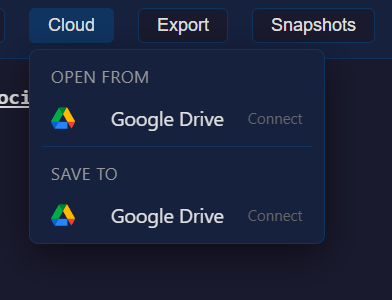
Open and save documents directly to cloud storage providers. Supported providers:
- Google Drive
- OneDrive
- Dropbox
- Box
Click the Cloud menu in the toolbar to connect a provider, open a file, or save the current document. Each provider requires a one-time OAuth authorization in a popup window.
Zero-data preserved: Document content flows directly from your browser to the cloud provider's API. The TablaCognita server never sees your document content — it only proxies the OAuth token exchange (which requires a client secret).
Tokens are stored in your browser's localStorage and persist across sessions. The Cloud menu only appears in the toolbar when at least one provider is configured by the server administrator.
Error Codes
When a tool call fails, the response includes an error object with a code field:
| Code | Meaning |
|---|---|
NO_EDITOR_CONNECTED | No browser tab is open for this user. The user needs to open the editor. |
SECTION_NOT_FOUND | No section matches the given heading/ID. Check suggestions in the error for similar sections. |
SECTION_LOCKED | Another agent holds a lock on this section. Wait or ask the user. |
FUZZY_MATCH_FAILED | The search text wasn't found, even with fuzzy matching. Check candidates in the error. |
FUZZY_MATCH_AMBIGUOUS | Multiple matches found. Use the occurrence option or narrow with section. |
CONFIRMATION_DENIED | User rejected the write_document replacement. |
CONFIRMATION_TIMEOUT | User didn't respond to write_document within 60 seconds. |
SNAPSHOT_NOT_FOUND | The given snapshot ID doesn't exist in browser storage. |
RELAY_TIMEOUT | The browser didn't respond within 90 seconds. Tab may be inactive or closed. |
TIER_LIMIT | Agent limit reached for your tier. Upgrade or disconnect an agent. |
AMBIGUOUS_SESSION | Multiple editor tabs open and no editor_session specified. Use list_sessions to discover sessions. The error includes the session list. |
AUTH_REQUIRED | Missing or invalid API key / token. |
CONTENT_CHANGED | Document changed since your last read. Re-read and retry. Returned when expected_hash doesn't match. |
ANNOTATION_NOT_FOUND | The given annotation ID doesn't exist. It may have already been acknowledged by all agents. |
Self-Hosting
The standalone (single-user) TablaCognita editor is open source and can be self-hosted:
git clone https://github.com/PStryder/TablaCognita.git
cd TablaCognita
npm install
npm start
The standalone version runs with no authentication and supports stdio MCP transport for local AI clients. See the GitHub repository for details.